Approvals
The Approvals module enables users to create and manage internal approval requests within the application.
It streamlines processes such as employee leave requests, equipment provisioning (e.g., keyboards or notebooks), and other administrative approvals.
By centralizing requests and routing them to the appropriate approvers, the module ensures transparency, consistency, and efficient decision-making across the organization.
Basic requirements: This function requires at least Free Robb-e Workspaces license
Approval Request
An Approval Request allows a user to submit a request based on a predefined approval template, ensuring consistency and completeness of required information. Each template includes a designated team of approvers, so requests are automatically routed to the correct reviewers without manual assignment. This simplifies the submission process while ensuring the request follows the proper approval workflow.
Creating an Approval Request
Before creating an Approval Request, an Approval Template must first be set up to define the structure and required information. A Team of approvers must also be created and assigned to the template to ensure requests are routed through the correct approval workflow.*
- Select the "Approvals" module from the left side menu.
- Click on the "Request a New Approval".
- Select the a template from the "Approval Template" dropdown menu and click "Next".
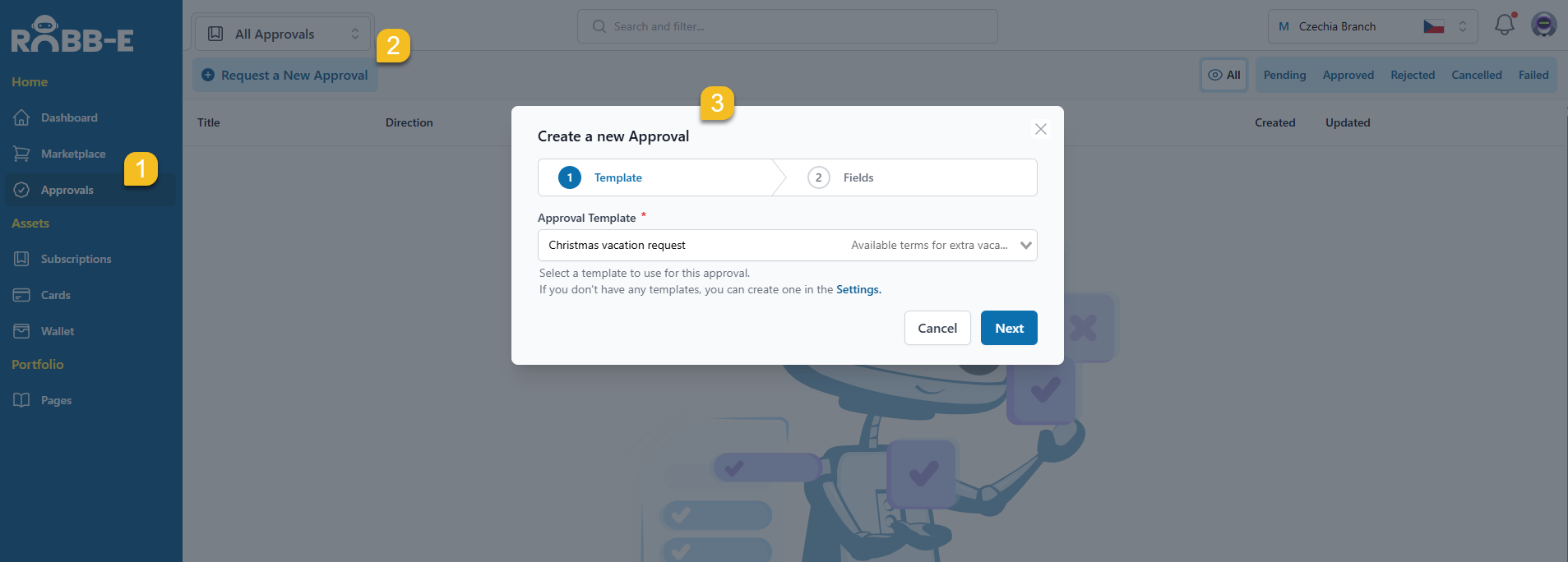
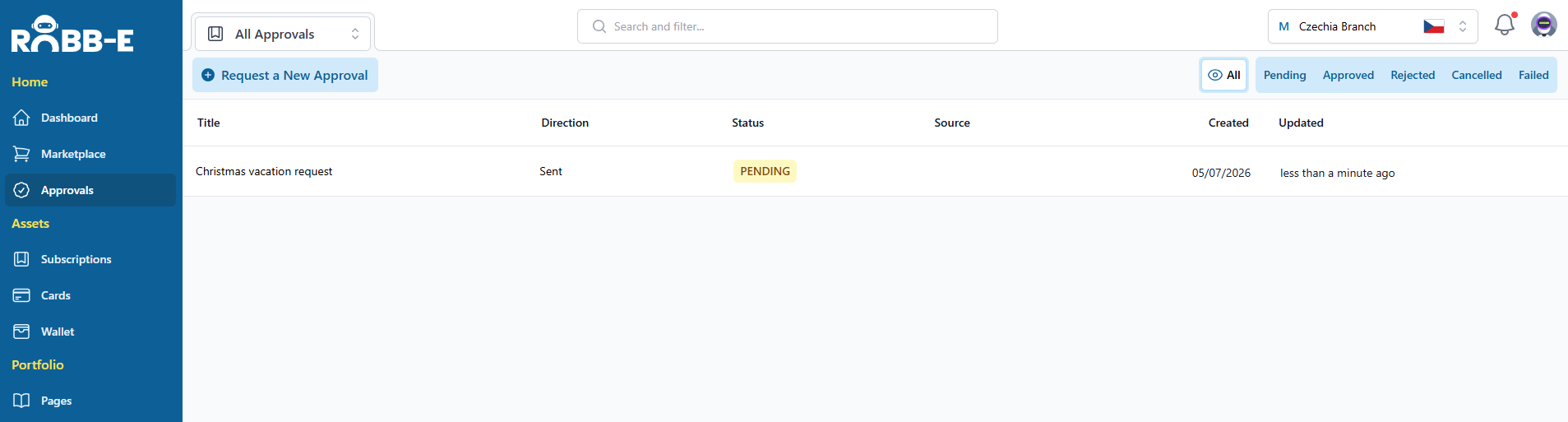
- Fill out the approval form and click "Create". After creating approval request, an approval is in the "PENDING" status and is waiting to be approved by the approver(s).
Other Approval Statuses explained
the Approval Request has been submitted, but not reviewed.
the Approval Request has been approved.
the Approval Request has been rejected.
the Approval was reviewed by required number of Approvers and action from another approver is not needed.
Reviewing the Approval Request
The Approval Review process ensures that all approvers assigned through the selected approval team are notified when a new approval request is submitted. If notifications are enabled in their notification settings, approvers receive an alert informing them that a request is awaiting their review.
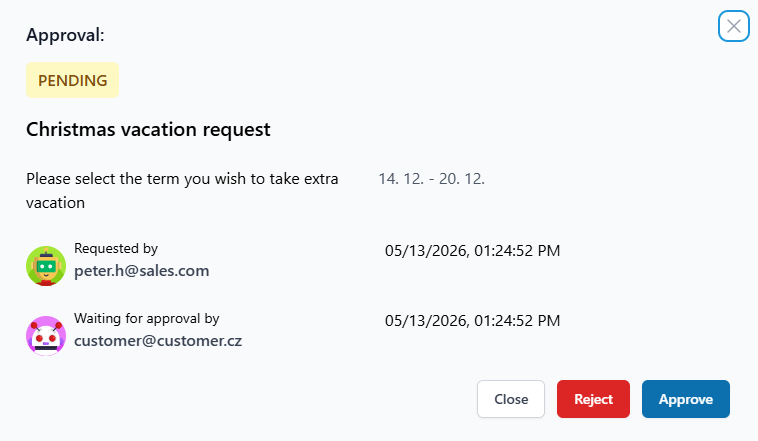
Approvers can then review, approve, or reject the request directly within the Approval module, helping organizations maintain efficient and transparent approval workflows.
- Click on the Approvals module.
- In the select view choose Received.
- Click on the row with the "Christmas vacation request."